Part 6: Cluster with a bit of Wifi
So, in part 5 you read about me failing miserably to get everything up and running over LAN. No connectivity, no DHCP, and lots of frustration.
I decided to take a step back. And in doing so, I realized that relying on WiFi might actually be smarter for a conference showcase setup, where I can’t always count on having a wired Ethernet connection. Thanks to the deep dive I did last time, I also came away with a better understanding of what might be going wrong - and a few new ideas for how to make it work. In this post, I’ll walk you through those decisions and the reasoning behind them.
Most important message in advance: Missing cable arrived. 🎉 So I can finally directly connect into my worker Pi’s to fix the issue.
Re-enabling WiFi – at least on the Control Plane
To get some sanity back into the setup, I re-enabled WiFi on my control plane Pi. It connects to my home network, while the other Pis (worker1, worker2) stay on SSH-only.
SSHing into the control plane by
ssh verena@cp.local
works again 🎉 My control plane now lives at 192.168.178.65 on the WiFi network.
Setting up internal network with static IPs for my cluster
The goal is to create the following internal network:
Subnet: 192.168.42.0/24
| Node | Interface | IP Address | Netmask | Gateway |
|---|---|---|---|---|
| control plane | eth0 | 192.168.42.10 | 255.255.255.0 | (none) or same IP |
| worker1 | eth0 | 192.168.42.11 | 255.255.255.0 | 192.168.42.10 |
| worker2 | eth0 | 192.168.42.12 | 255.255.255.0 | 192.168.42.10 |
Since I already have access to the control plane node, I’ll start configuring that one first.
Control plane setup
- Install and enable dhcpcd5:
sudo apt update
sudo apt install dhcpcd5 -y
sudo systemctl enable dhcpcd
sudo systemctl start dhcpcd
- Edit /etc/dhcpcd.conf with the following values:
interface eth0
static ip_address=192.168.42.10/24
There is no need to setup a router or domain_name_servers - DNS and routing will be handled via WiFi(wlan0).
Reboot the Pi.
Check if it worked with:
ip addr show eth0
And there we have a subnet 🎉
Worker nodes
The worker nodes need a slightly different setup. Unlike the control plane, they don’t have internet access — so they can’t install dhcpcd. Hello systemd-networkd ;)
We also need to make sure the workers know how to reach the control plane, since it will act as their gateway.
So I used the following setup to join the worker nodes into the setup:
- Connect a monitor and keyboard and log in directly to each worker node.
- Create a network config for eth0:
`sudo nano /etc/systemd/network/10-eth0.network`
and insert the following:
[Match]
Name=eth0

[Network]
Address=192.168.42.11/24 # 12 for worker2
Gateway=192.168.42.10
Fun Fact: Of course I’m using a German keyboard, so the first thing I had to do was run raspi-config — just to be able to type [ and ] 🙈
- Enable and start systemd-networkd:
sudo systemctl enable systemd-networkd
sudo systemctl start systemd-networkd
- Exit the Pi, reconnect the Ethernet cable, and reboot the node
After this setup and rebooting the Pi, I tried to ssh into the worker from the control plane - and voilà:
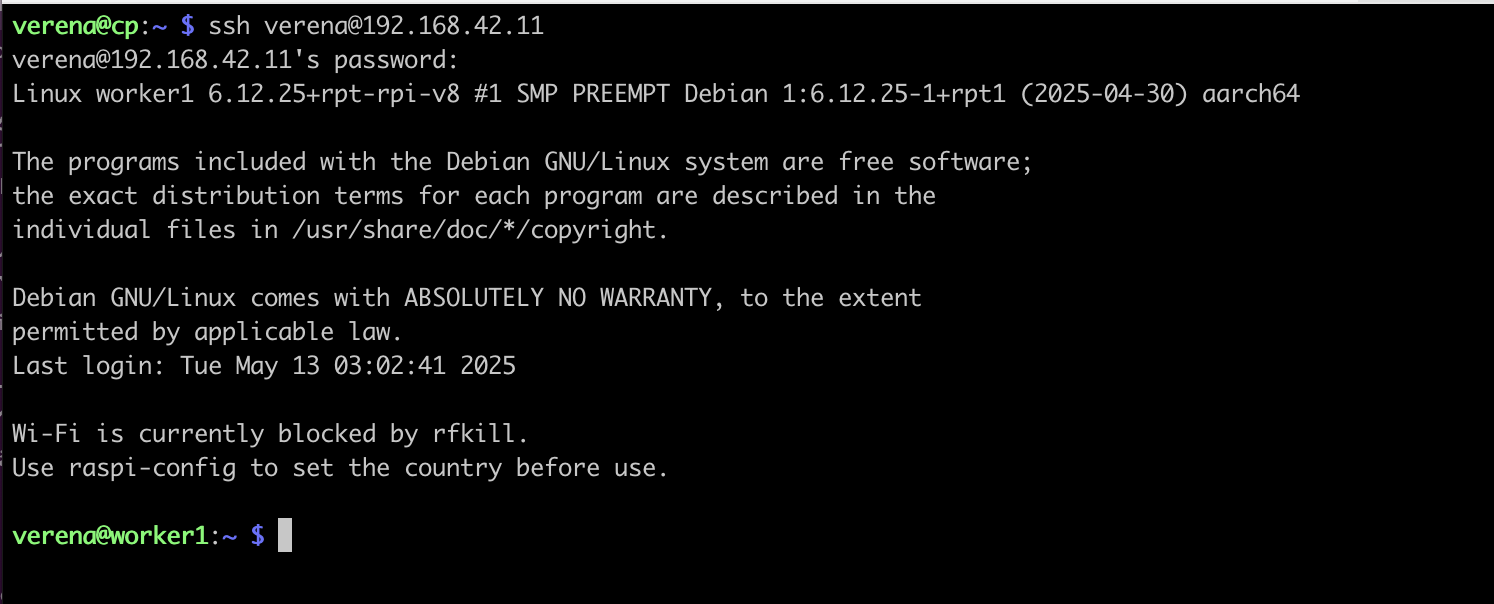
So, now, this is what we finally ended up with:

For convenience: updating /etc/hosts on control plane
To make SSH access more convenient, I updated the /etc/hosts file on the control plane with the static IPs and hostnames of the worker nodes. This way, I can simply run
ssh verena@worker1.local
instead of remembering IP addresses. It’s a small step, but it makes working with the cluster a lot smoother.
Finally: k3s again 🎉
The glorious moment had come - time to install k3s again! Should be easy now, right? Spoiler - its not 🙈
Control Plane setup
As described already, I started with the usual steps to get k3s up and running on my control plane:
- Update the boot config by running
sudo nano /boot/firmware/cmdline.txtand adding
systemd.unified_cgroup_hierarchy=1 cgroup_enable=memory cgroup_memory=1
- Reboot and install k3s with
curl -sfL https://get.k3s.io | sh -
Then I ran the classic check
sudo kubectl get nodes
which took AGES … and eventually failed with a “cluster not available” error.
Checking the resources on the Pi gave a:

So, the tiny RAM was completely overloaded - quite likely because the control plane now is juggling k3s, networking, and SSH.
Remember when I disabled the swap file? Yeah… that was a mistake 😅 Time to to ease the pressure a bit:
Create a new swapfile:
sudo fallocate -l 512M /swapfileSecure it:
sudo chmod 600 /swapfileSet it up:
sudo mkswap /swapfileEnable it:
sudo swapon /swapfileMake it permanent:
echo '/swapfile none swap sw 0 0' | sudo tee -a /etc/fstab
After that, things looked better:

Still not great though - and also swap was filling up.
I was advised to get htop to monitor what was eating all those resources:
sudo apt install htop
htop
Which resulted in this beauty:
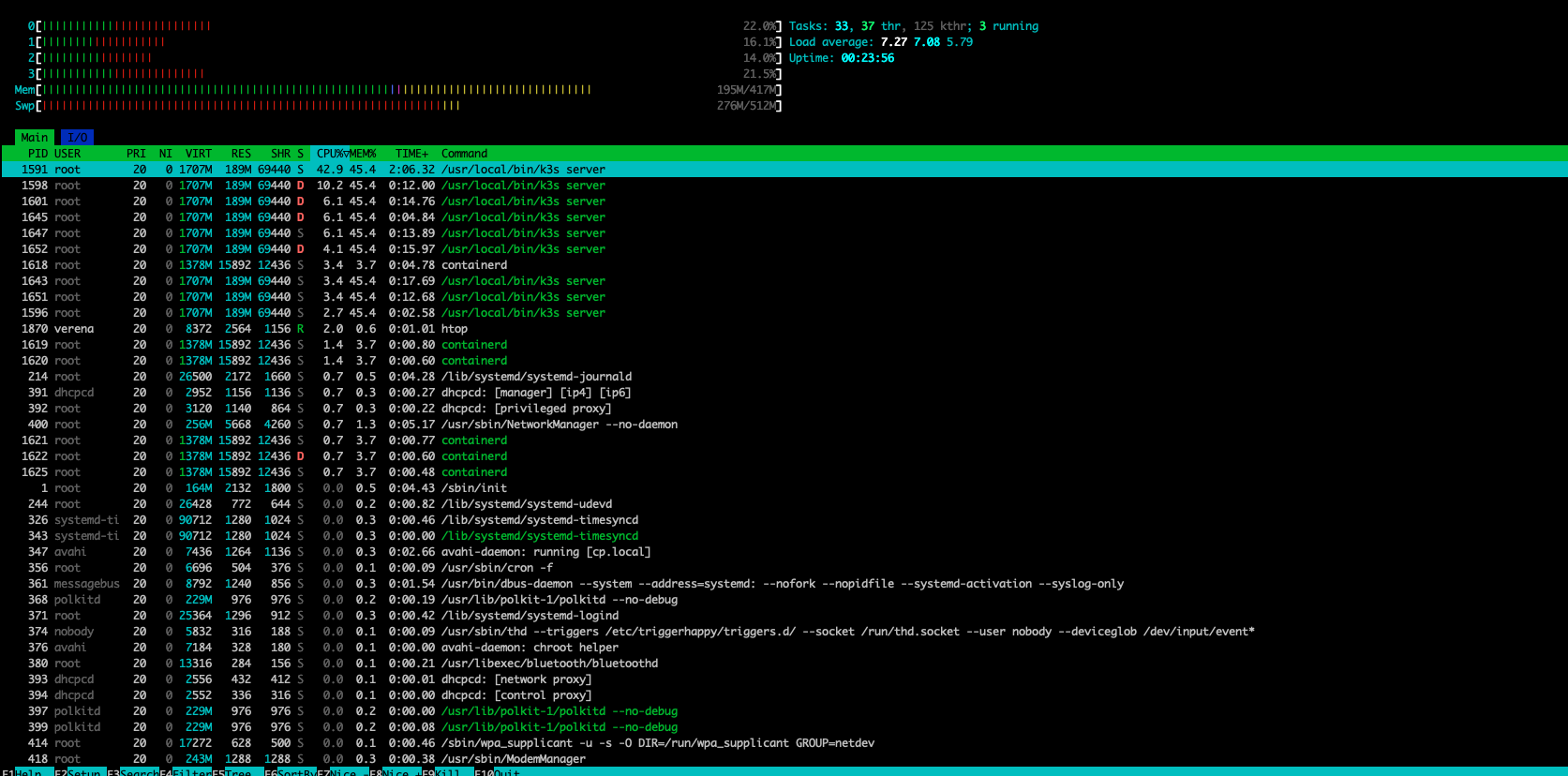
Not surprisingly, k3s takes on a lot of resources. But the swapfile at least helped, so I decided to for now move forward and work on resource usage optimization later.
Back to k3s then: Checking the nodes now worked, and as expected I saw my control plane node. Time to get the node token:
sudo cat /var/lib/rancher/k3s/server/node-token
BUT: the Pi frooze again 🙈
So … What now? A few ideas popped into my head:
- I could disable unnecessary stuff on the control plane Pi (e.g. Bluetooth). But would that really free up enough space?
- I could add an additional storage and move some load there. But guess what? Missing cables. Again 🤪
- I could offload some workloads to the worker Pis, but honestly, that might just shift the problem.
- I could bring the Pi 4 back in the game as control plane (hello extra RAM!) and make the current control plane a worker again. But … wasn’t avoiding that kind of the whole point?
So there I was — Friday afternoon, stuck between too many options. In the end, I decided to sleep on it and revisit the problem with a fresh mind over the weekend 😇